

Why App Protection Policies?
App Protection Policies are a great way to secure data while on BYOD – some may know that already from iOS or Android. I will show you today how to start with MAM for Edge on Windows. While I’m personally not a fan of BYOD in enterprise context, we have that use case often.
Prerequisites
The user needs to have an Intune license assigned. Also, we need some policies here and conditional access policies there. I will come back to that in a second. Of course, at least Entra ID Premium P1 is needed.
Conditional Access
The first conditional access policy will set the start for our journey. This will allow the use of Edge if an App Protection Policy is present.
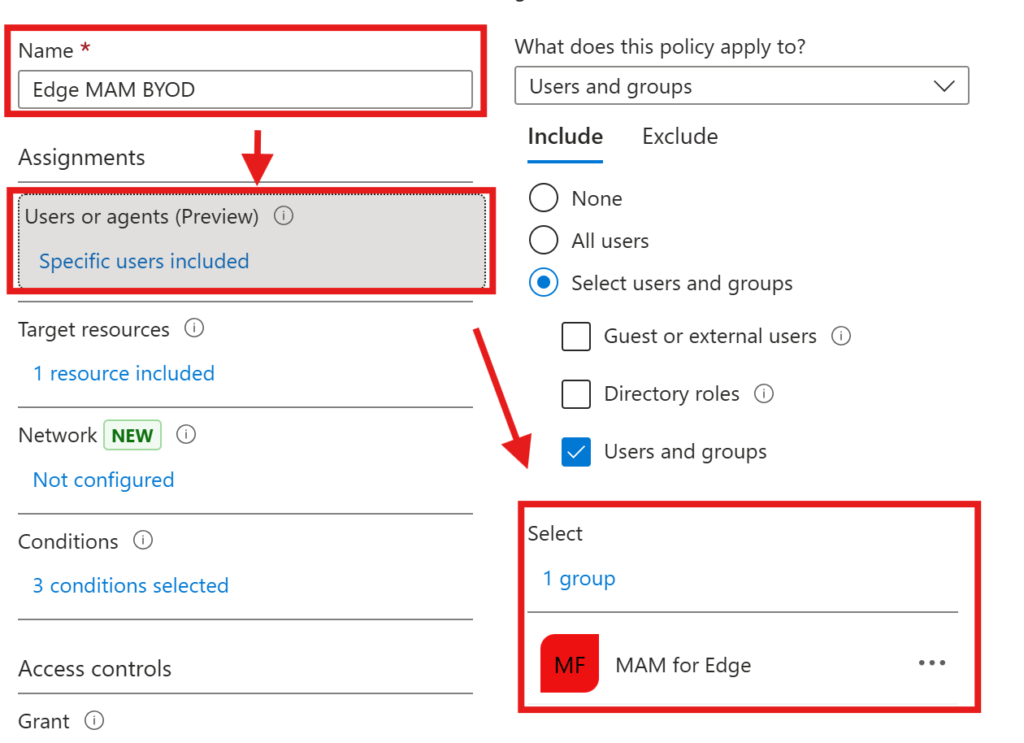
First of all, we create a new policy and give it a name. Then we scope it to a test group
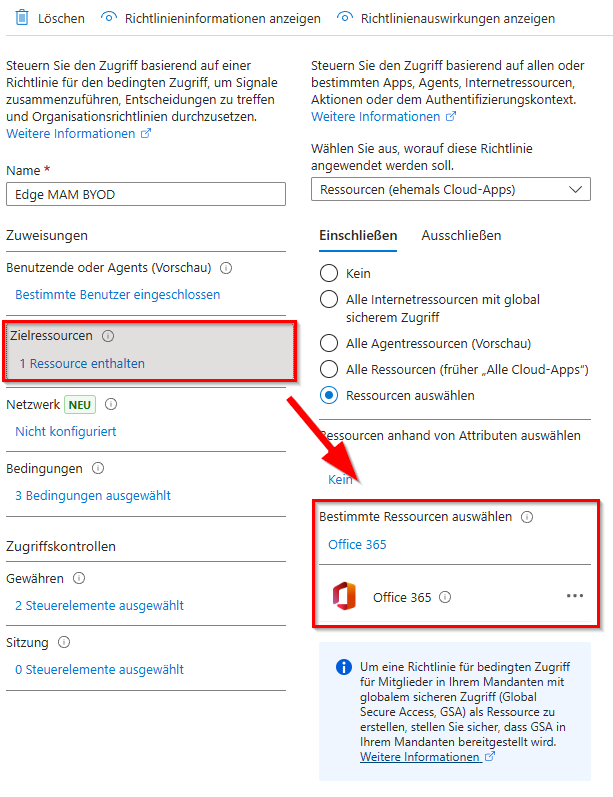
As the target resource, choose Office 365
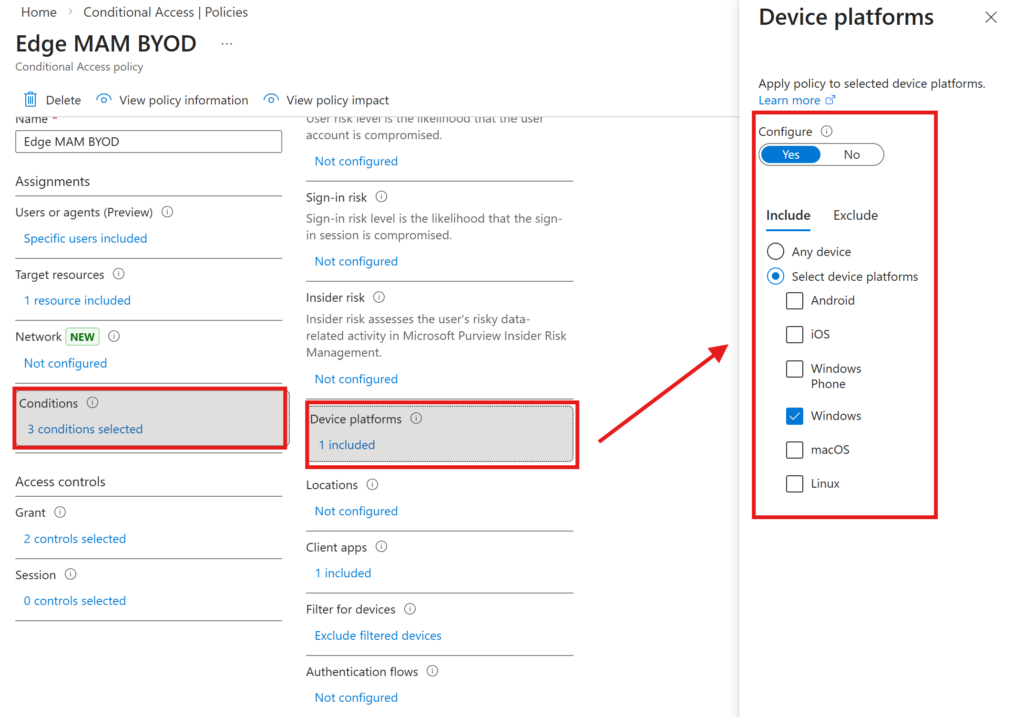
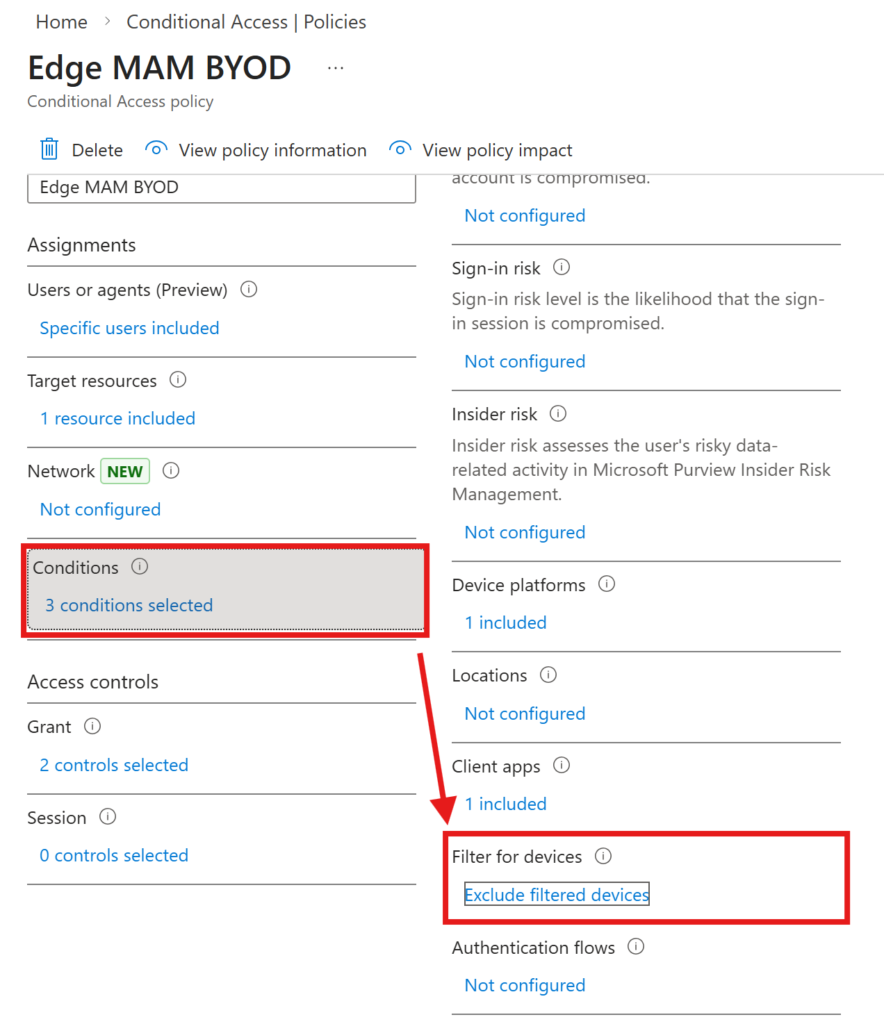
We need to configure three conditions:
Use Windows as the target platform
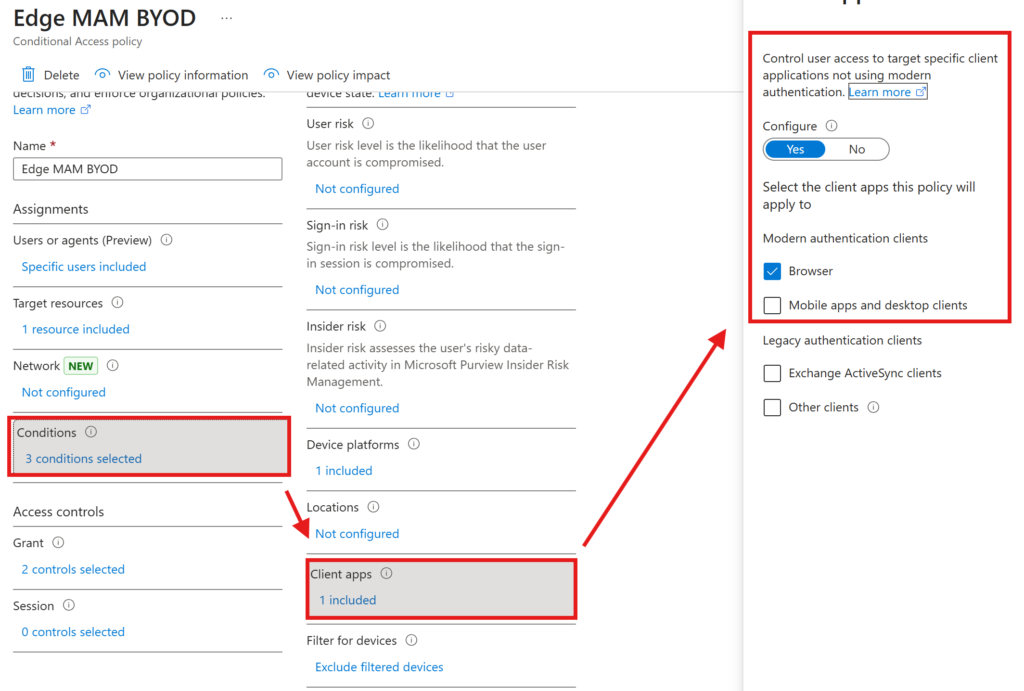
The client apps should be set to Browser
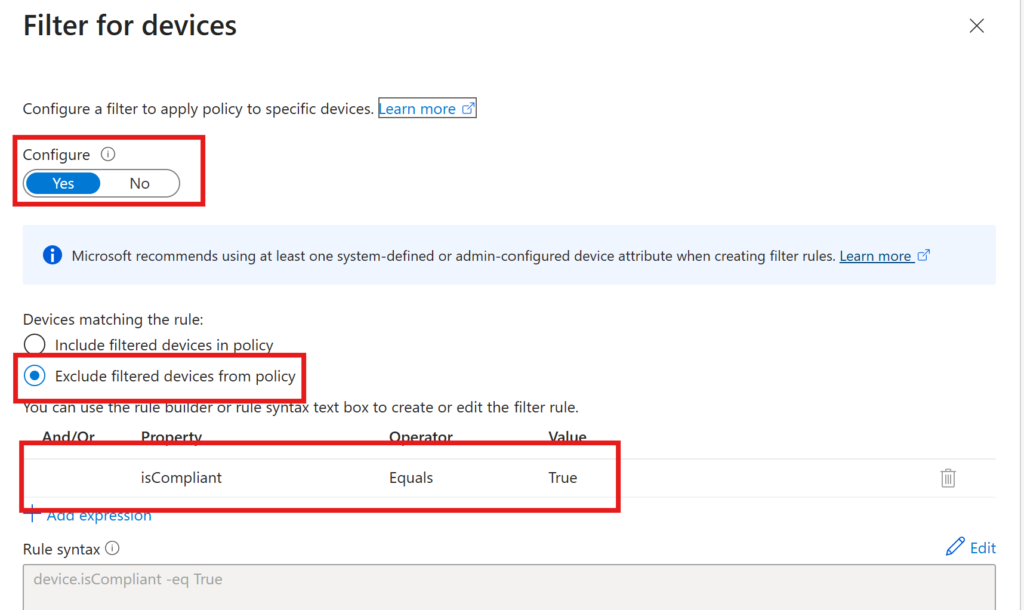
And we want to exclude compliant devices for the policy to only be applicable to BYOD or non-compliant devices
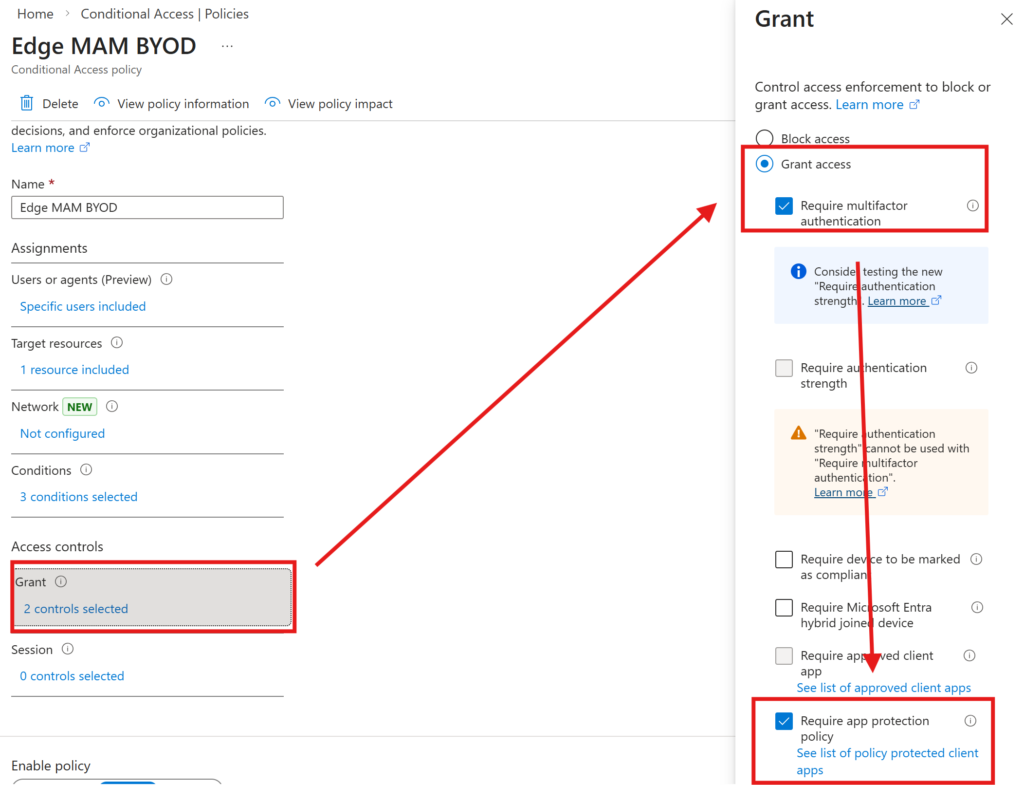
In the access controls, we want to enforce multi-factor authentication as well as ‘Require app protection policy’. This will only allow access, if we have created an App protection Policy in Intune which is scoped to Microsoft Edge for Windows.
App Protection Policy
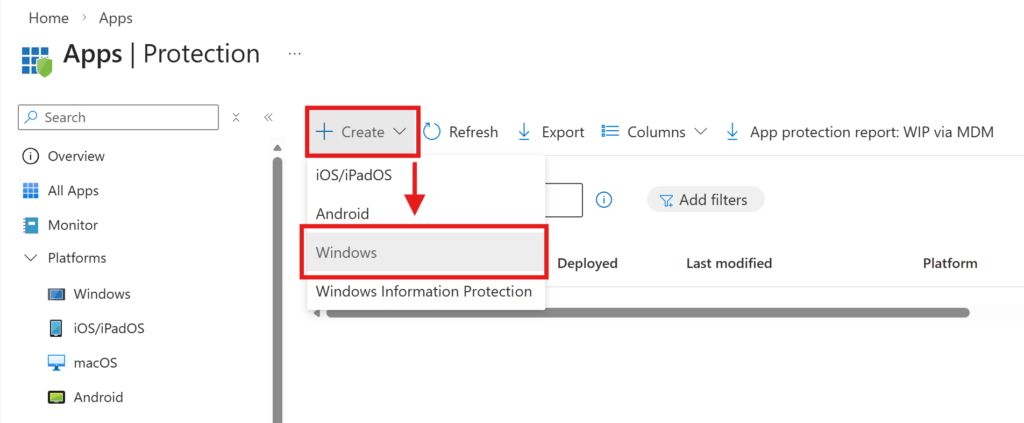
Okay so now we have the bouncer set up, time to build the actual policy in Intune. For that go to App -> Protection and create a new policy for Windows.
Obviously, select Microsoft Edge as the targeted app
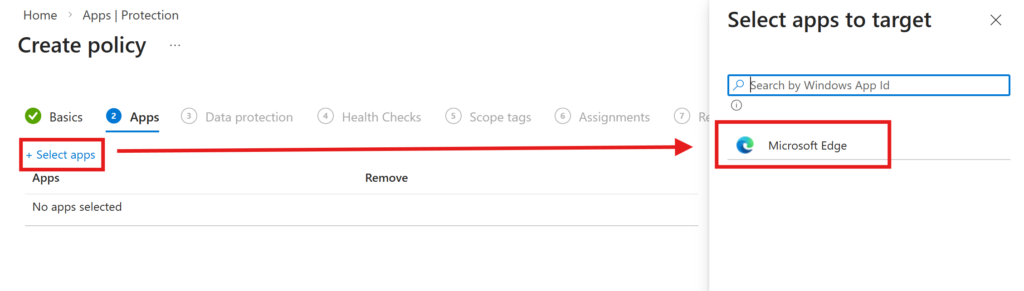
Data protection
Data Transfer
- Receive data from
- Choose, where you can open data from (open data from external accounts, documents, apps)
- All sources
- No Sources
- Choose, where you can open data from (open data from external accounts, documents, apps)
- Send org data to
- Choose, where you can send data to (save data to external accounts, documents, apps)
- All destinations
- No destinations
- Choose, where you can send data to (save data to external accounts, documents, apps)
- Allow cut, copy, and paste for
- Choose, where data can be copy and pasted to and from
- Any destination and any source (copy and paste from anywhere to anyhwere)
- Org data destinations and any source (copy and paste from anywhere to org data)
- Org data destinations and org data sources (copy and paste within org data)
- No destination and no source (copy and paste is not permitted)
- Choose, where data can be copy and pasted to and from
- Print org data
- Choose, if printing organization data is permitted
- Allow
- Block
- Choose, if printing organization data is permitted
For my demo, I will choose those settings
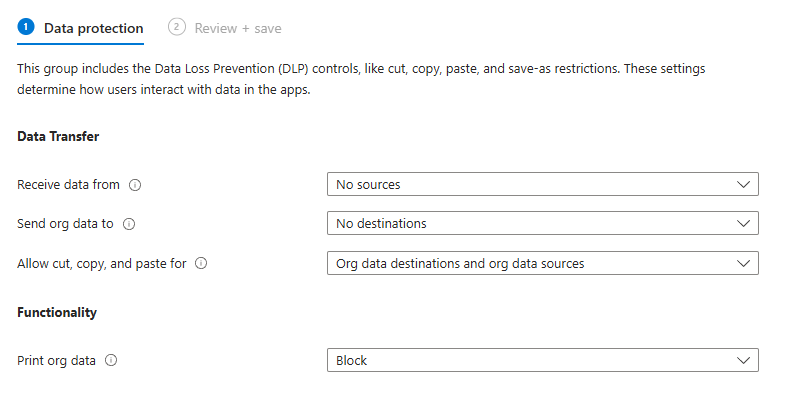
Health Checks
In the health checks section, we can set, when we can access data like:
- How much time is allowed to be gone since the last login in the account and if a certain amount of time is gone, what should we do with the data like block access or wipe the org data
- What happens with the data, if we want to access with a disabled account?
- What Threat Level is allowed to access data? (Mobile Threat Defense needs to be set up for that)
- What OS build is the minimum that can the data be accessed from?
For my test, I choose these settings
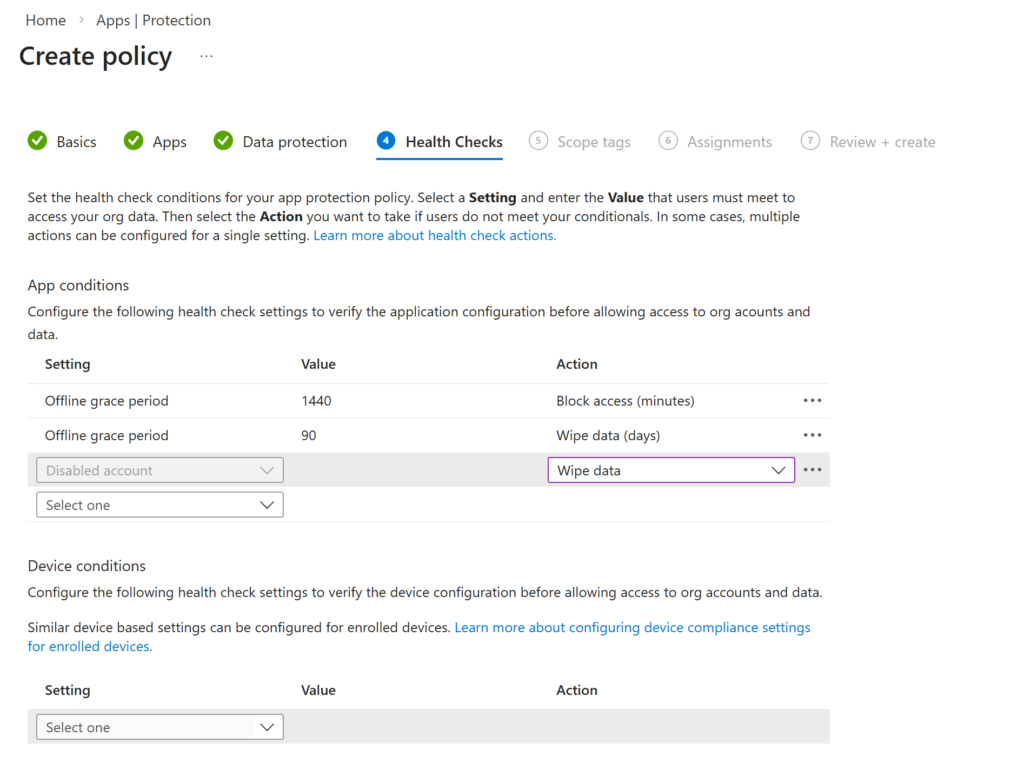
Next, we need to choose Scope tags (if applicable) and assign the policy to the group we previously created.
App configuration policy
With the app configuration policy, we can control how the browser behaves in a way like whats the default site, whats the default download directory etc.
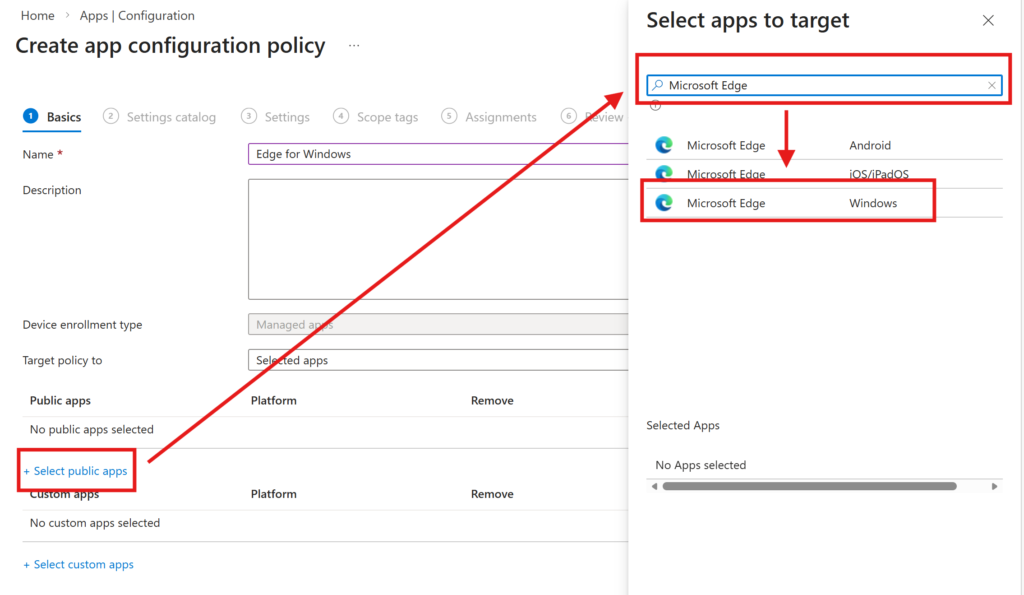
To create an app configuration policy go to Apps -> Configuration -> Managed Apps
Target the policy to ‘Selected apps’, click on Select public apps, search for Microsoft Edge and select Microsoft Edge for Windows
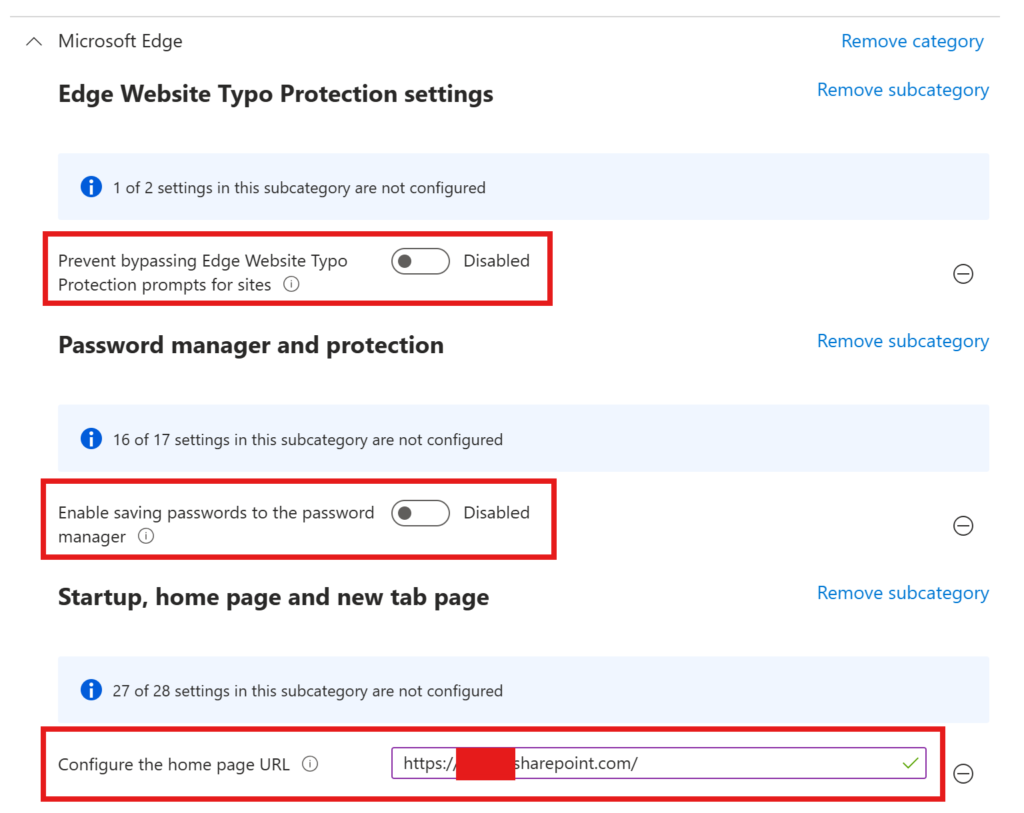
Now we can choose many settings from the settings catalog, I will pick some for testing purposes. In my case I want to prevent users from saving passwords in Edge, set the default homepage and preventing bypassing Edge Website Typo Protection
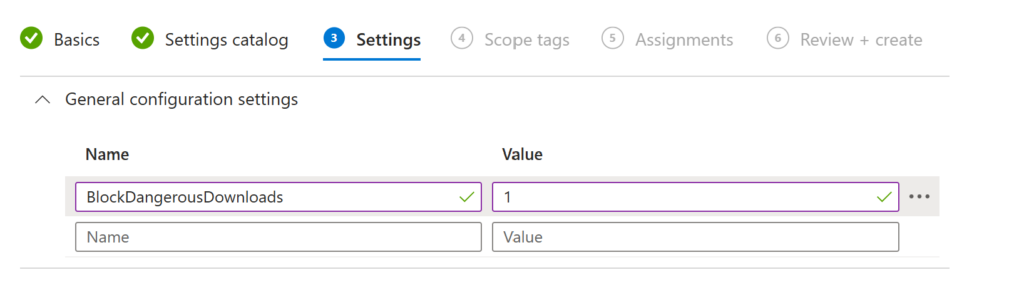
For demonstration, I also want to block dangerous downloads (in the General tab). You can find more about the policies here: Microsoft Edge Browser Policy Documentation | Microsoft Learn Some settings are not available through settings picker yet (or I didn’t find them – also very possible)
Now choose your Scope tags if applicable and assign the policy to your test users group.
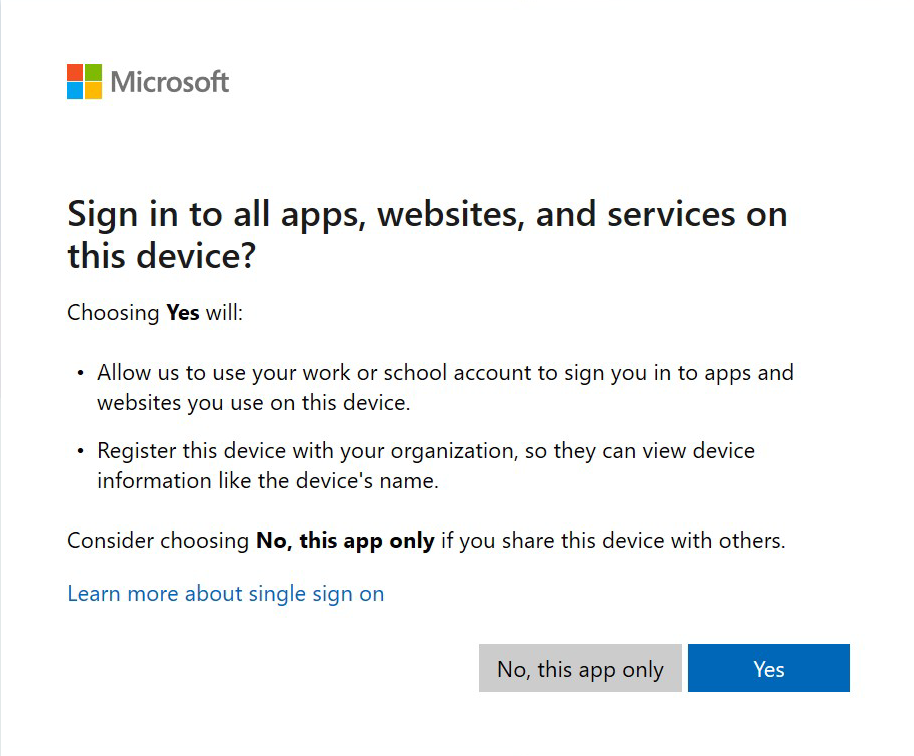
Now when you sign in to your work account, you need to choose “Yes” when you are asked, if the device is allowed to be managed.
Intune managed devices
All this above is only possible for unmanaged devices. To make this work for already managed devices (maybe if you are a consultant and are working with different organizations), we have to set some more settings.
Please be aware, that at the time of writing, this is in public preview (March 2026)
To enable the MAM profile enrolled while being on a managed device and the enhanced dlp protected downloads, navigate to edge://flags and enable the flag:
#edge-allow-mam-on-mdm
#edge-dlp-protected-downloads
Protected downloads via OneDrive for Business and watermarking in MAM-Profiles
This feature will send all downloads into the OneDrive of the user in a specific folder and watermark the MAM-Profile. To enable, follow these steps:
Go to https://admin.microsoft.com -> Settings -> Microsoft Edge and create a new configuration policy
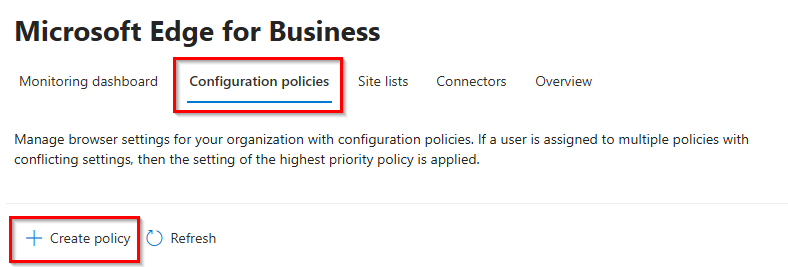
Choose a telling name and click next
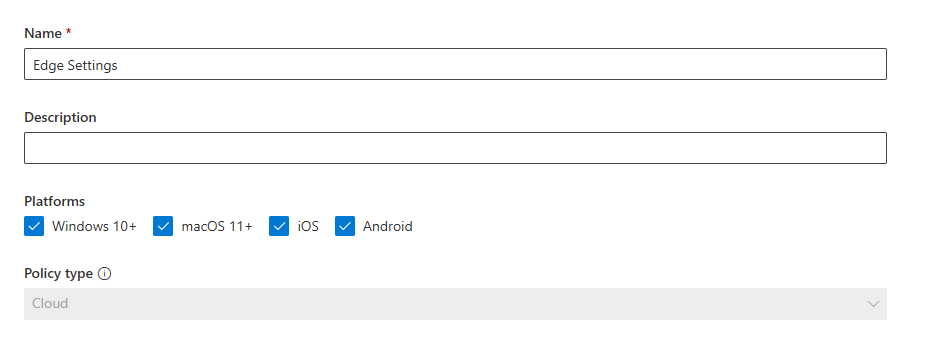
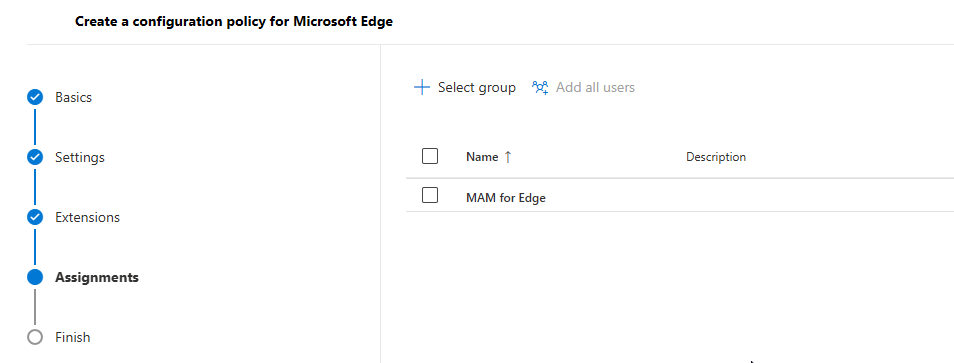
Leave the setting empty and go directly to the assignment. We will save an empty policy. Don’t forget to assign the policy to your test group
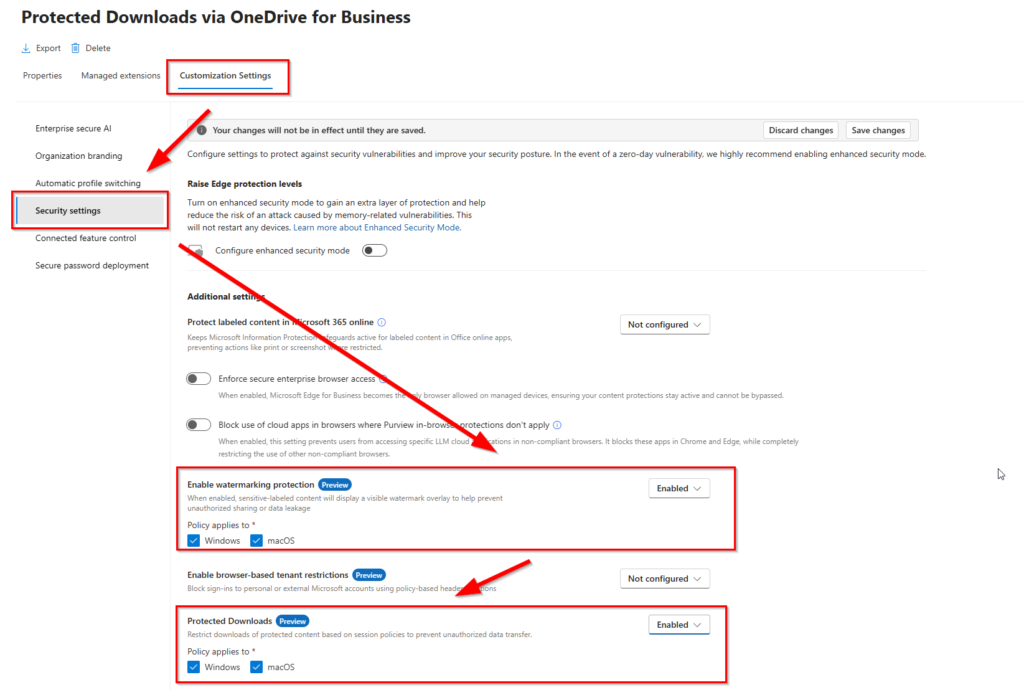
Open the policy again and got to Customization Settings -> Security Settings. You can enable both settings.
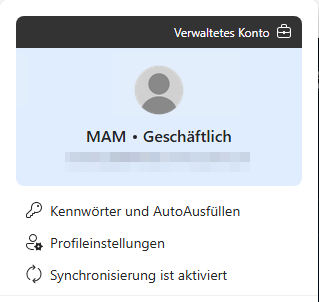
After login, my account looks like this:
When I want to login to e.g. SharePoint Online of the MAM organization, the enrollment flow will trigger
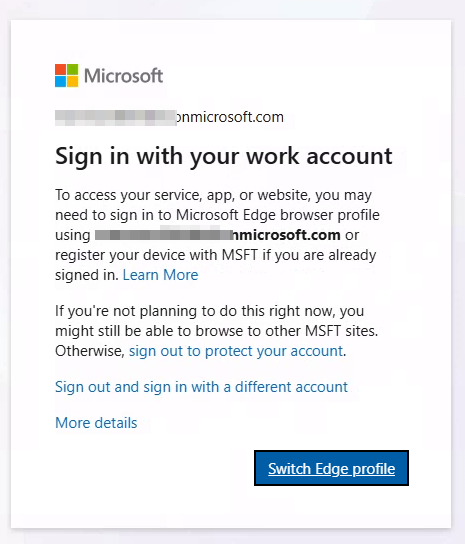
You can also see the enrollment in the device settings at Work- or School accounts
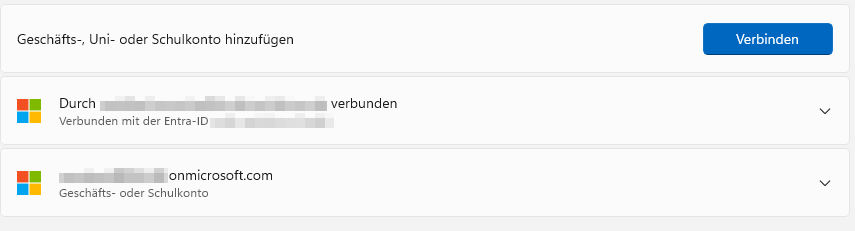
Additional Leak Controls
If you set any setting in the cut/copy/paste setting in the app protection policy to any blocking (which means not ‘All destinations and sources’), two features are automatically enabled:
- Screenshot Prevention to block screenshots in protected sessions
- Developer Tools Protection to restrict access to the DevTools in Edge (F12)
[…] This post was posted first on App Protection Policies for Microsoft Edge | ZeroTrustStories […]