
Why is this a big deal?
Recently I stumbled above a new feature in the Azure Portal which let me assign role assigments to remote tenant groups. This will allow you to assign Azure roles to e.g. GDAP groups!
Why is this worth a blog post? Well, if you rely heavily on GDAP (as we do), you will run into some permission issues, since Entra and Azure permissions are separated. This is needed e.g. for accessing Azure Workbooks or creating Diagnostic Settings in Intune, which are relying on Azure resources.
Microsoft Documentation is not updated yet (17th. April 2026) (Assign Azure roles using the Azure portal – Azure RBAC | Microsoft Learn)
Assigning Azure role assignments
So what do we need as a prerequisite?
- Existing GDAP relationship
- Azure Subscription
Initial situation
So for example we want to enable Entra Diagnostic settings to be written into a Log analytics workspace but we only have GDAP permissions. Currently, if you want to setup the settings with a GDAP account, you will see this “error”:

New situation
Now, we can make this change with a GDAP account if we set up the remote tenant group role assignment 🙂
In the tenant (with an “internal” account) you want to enable the Diagnostic settings, go to the Azure portal (https://portal.azure.com) and open the Resource group, where your Log analytics workspace was created. Open Access contral (IAM) and add a new role assignment.
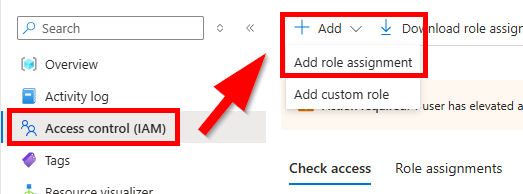
In the next windows, choose the proper permissions you want to give and click “Next”.
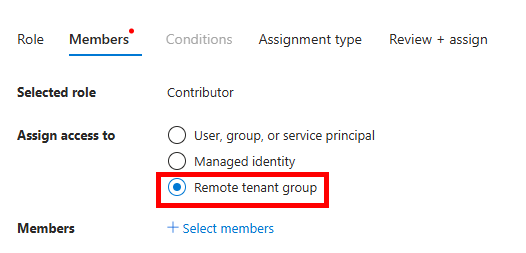
Now choose “remote tenant group” and click “Select members”. Choose your group from your GDAP role.

You cannot change anything in the “assignment type” section, beacuse these settings are done in the management tenant where your group exists. Click “review + assign”.
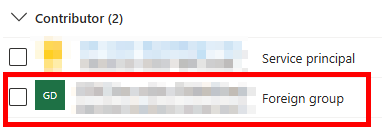
Now if you look at the role assigments, your group will show up as “Foreign group”
Add diagnostics settings with your GDAP account
Now assign yourself the GDAP role and switch to the to-be-managed tenant. In my case I want to create Diagnostic settings for Intune. Go to Tenant administration -> Diagnostic settings and click “Add diagnostic setting”
Give the settings a name, select your log categories and send it to a Log analytics workspace
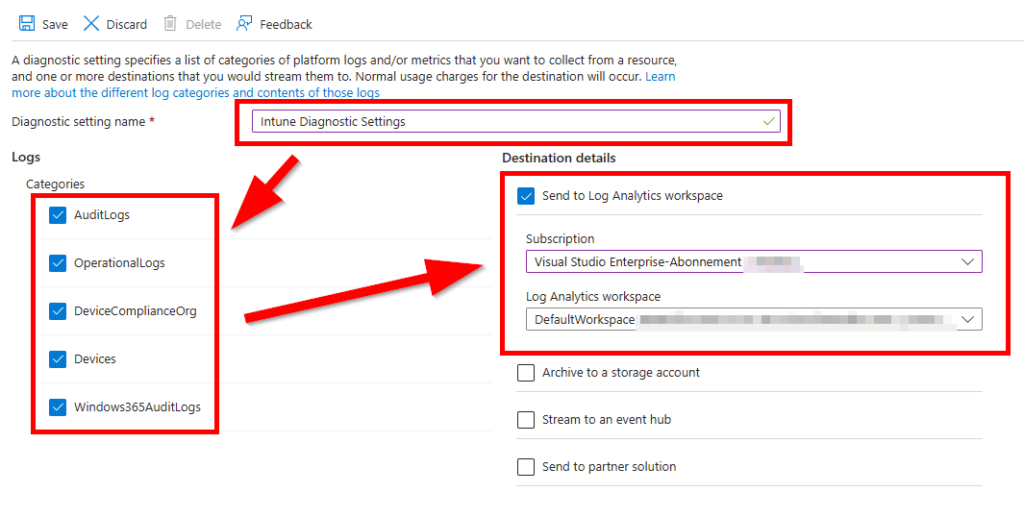
You will only see the workspace, where the role assignment allows you to.
Access Log analytics
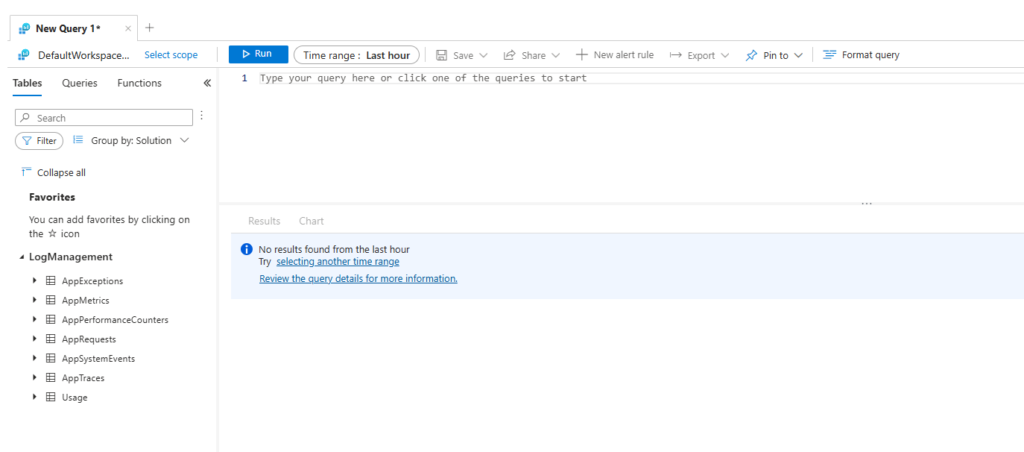
Now you can go to Reports -> Log analytics or Reports -> Workbooks and do your KQL magic with your GDAP account.
[…] This post was published first on Assign remote tenant groups to Azure roles […]