

Introduction
Robopack simplifies application packaging and deployment, but MSIX installations can still fail if specific requirements aren’t met. These issues often stem from trust configuration, policy restrictions, or packaging constraints that block installations from third-party deployment tools. In this guide, you’ll learn how to identify and fix Robopack MSIX deployment issues, understand why they occur, and apply the exact configuration changes needed to ensure reliable MSIX LOB app installations across your environment.
Why the MSIX deployment failed
We had some tickets, that installations from the company portal would fail every time, the user wants to install specific apps. Since we are using Robopack for deployment, a quick look into it gave me the hint, that all apps were MSIX packages.
I spinned up my Windows 365 and wanted to install the package manually.
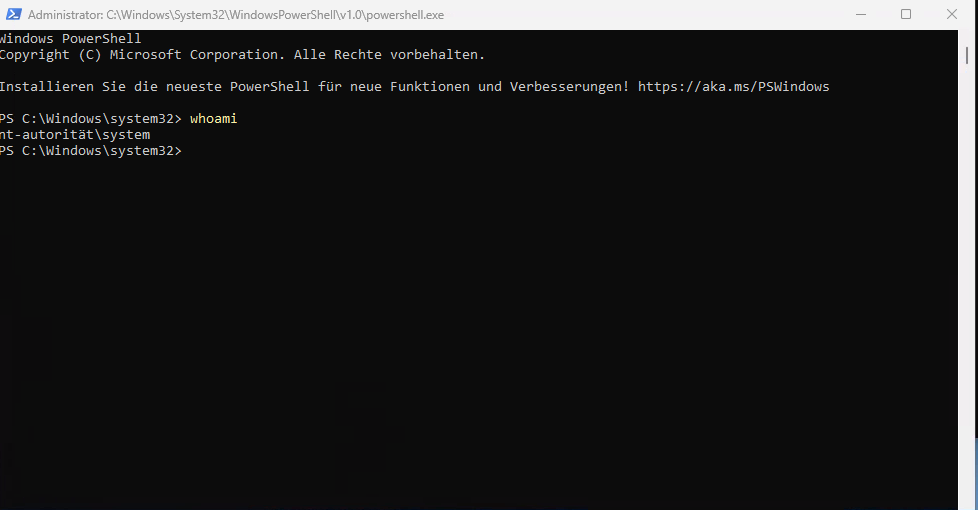
Tip: to try your packages manually, use PSExec from Sysinternals (get it here live.sysinternals.com – /) and try to install it as SYSTEM (PSExec.exe -i -s powershell.exe)
To get the PowerShell command to install the package, in Robopack, you can view the installation script
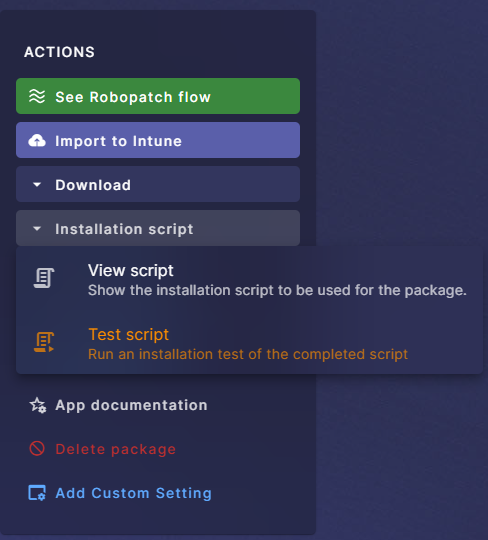
In my case it was the Canva app, I wanted to publish
Add-AppxProvisionedPackage -Online -SkipLicense -PackagePath .\Canva.Affinity.3.0.3.4027.X64.msixAfter firing up the command, the errormessage would have come up

In this case, we didn’t allow to sideload apps
How we fixed it
Now we have to tiny RegKeys, we could set. Navigate to:
HKLM\SOFTWARE\Policies\Microsoft\Windows\AppxWe had both keys set to “0”

As you could think, for this to work it should be “1”. But how do you get it to all your devices?
We use a configuration profile in Intune.
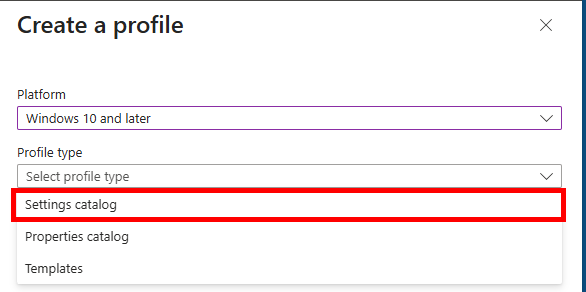
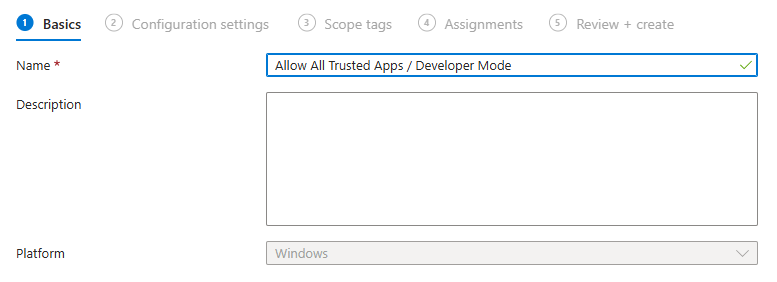
Choose a name.
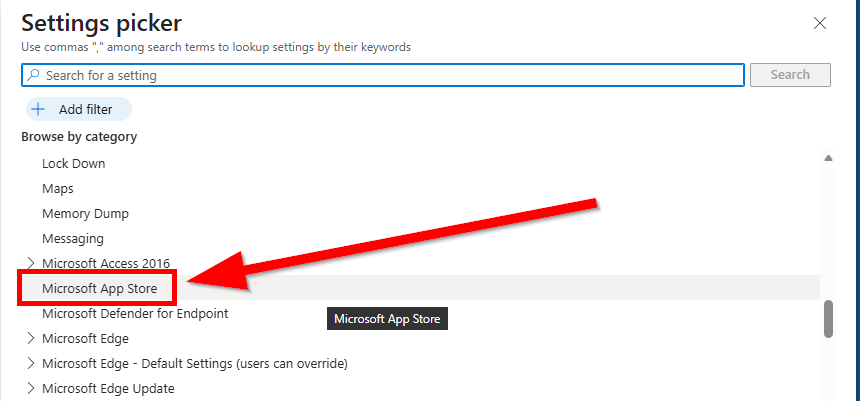
Go to Microsoft App Store
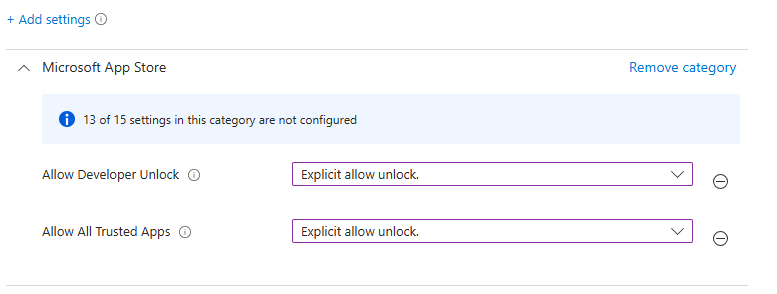
You need to explicitly allow unlock, not configured would be the same as deny
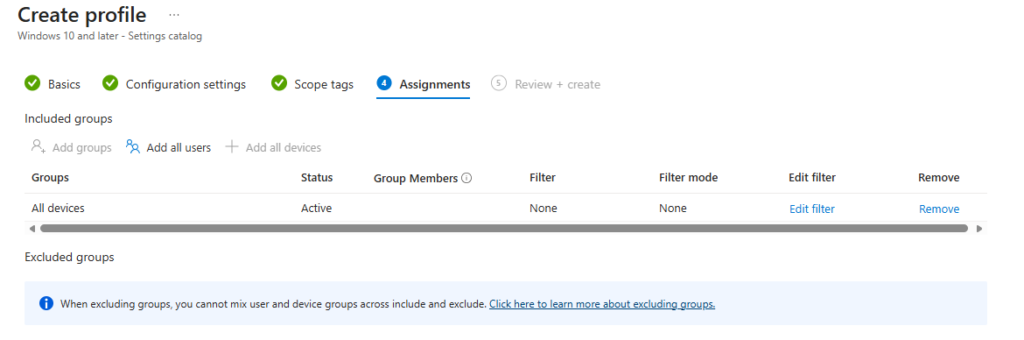
Next, choose Scope tags if appropriate and use ‘All devices’ for assignment.
After a reboot, the Keys should switch to “1” and the installation should be successful
[…] This article was published at first at Fix Robopack MSIX Deployment Issues | ZeroTrustStories […]