

Introduction
Do you ever had the problem, that you do not have access to a device and the logs, you get out of Intune with ‘Collect Diagnostics’ are not enough? Not anymore!
In this post I will show you, how you can get any kind of logs with a litte PowerShell script and Collect Diagnostics.
The Problem with collect diagnostics
I recently stumbled into a problem at one of our customers, which still has some Hybrid-Joined devices and in Intune all looked well. So maybe there is an old GPO, which make problems? Unfortunately, I do not have access to their Active Directory. So how do I get those logs?
At first, I had a look at the logs, Intune gets me when I hit ‘Collect Diagnostics’

Unfortunately, it was not what I hoped to find.
You can find those logs on your client at
C:\ProgramData\Microsoft\IntuneManagementExtension\LogsSo what if I just put my logs into that directory?
I put together a tiny Remediation (Detection) Script, which runs gpresult on the client and puts the output file in the mentioned folder.
$RegistryPath = "HKLM:\SOFTWARE\Microsoft\Windows\CurrentVersion\Policies\System"
$LogDir = "C:\ProgramData\Microsoft\IntuneManagementExtension\Logs"
$ExportFile = Join-Path $LogDir "regkey_export_$(Get-Date -Format 'yyyyMMdd_HHmmss').txt"

try{
    if (Test-Path $RegistryPath) {
        $RegKeys = Get-ItemProperty -Path $RegistryPath
        Write-Output "Registry keys found at $RegistryPath"
        $RegKeys | Format-List | Out-File -FilePath $ExportFile -Encoding UTF8
        Write-Output "Registry export saved to $ExportFile"
        exit 0
    }
    else {
        Write-Warning "Registry path not found: $RegistryPath"
        exit 1
    }
}
catch {
    Write-Error "Error accessing registry: $_"
    exit 1
}
When you now test this script locally (in an elevated shell), the file should appear:

The remediation script to collect the logs
So how do we get this information from our remote client? We use a remediation script.
- Go to Devices – Scripts and remediations
- Create a new remediation script.
We only need the detection script in this case
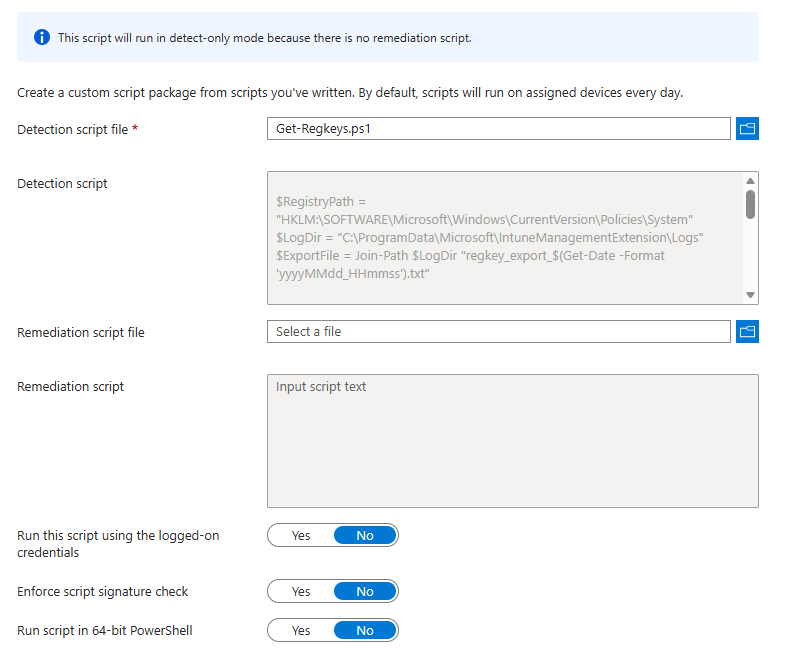
I did not assign it to a group, because I pnly want it to run on-demand
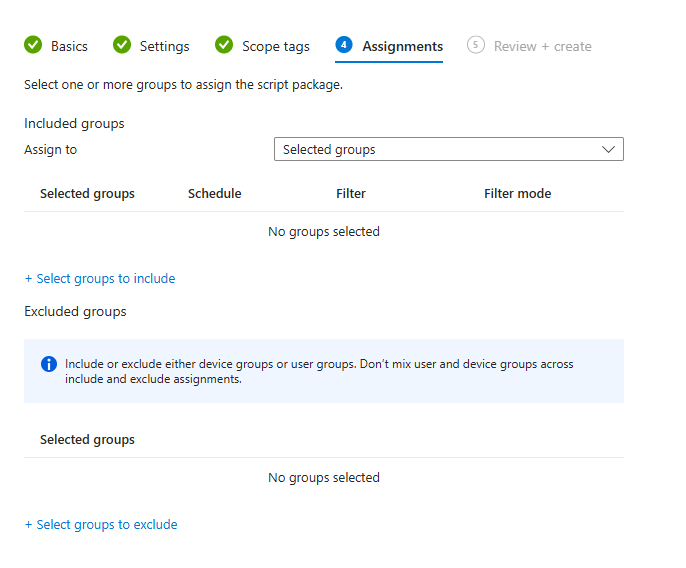
SEND IT!
Now we go to the device in Intune, which we want the logs for and click “Run remediation (preview)”.

We choose our formerly saved script and click “Run remediation”
In the overview of the device, we can track, if the remediation was executed correctly
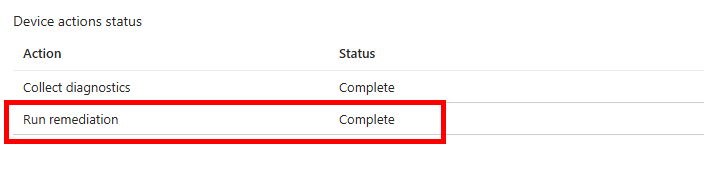
Now we can Collect the Diagnostics and see, if it worked. In the downloaded diagnostic logs, we have to go to the IME_Logs folder

And we can see, the file is here

Conclusion
You have learned how you can leverage the Collect Diagnostics feature to collect you own logs with remediation scripts.
If you want to learn more about remediation scripts, have a look at Use Remediations to Detect and Fix Support Issues – Microsoft Intune | Microsoft Learn
[…] This post was first published at Intune collect diagnostics: Collect Custom Logs Easily | ZeroTrustStories […]