

At the time of writing, this feature is in public preview (March 2026)
Introduction
Don’t you think Microsoft is backing up your tenant… but now they do! At least some parts of it. Most of you have (hopefully) a working backup solution for their Microsoft 365 environment. After Microsoft 365 Backup, Microsoft is now going to backup your Entra data. For now, its free to use if you have an Entra Premium P1 or P2 license (maybe Microsoft will charge you for using the backup after the feature went GA but who knows).
Everyone should know by now, that Microsoft is not responsible for your data, so a working backup and recovery is a key role for business continuity.
Prerequisites
For now, you are good to go if you have Entra Premium P1 or P2 licenses.
What will be backupped?
As of now, you can backup and recover the following types of resources:
- Applications
- Authentication Methods Policies
- Authentication Strength Policies
- Authorization Policies
- Conditional Access Policies
- Groups
- Named Locations Policies
- Organization
- Service Principals, App Role Assignment, OAUTH2 Permission Grants
- Users
You can recover either all of them at once, a whole type from the list above (e.g. all conditional access policies) or granular resources by their ID.
How does it work?
Okay now lets get to work.
Backup, difference reports and recovery
You can get to the backups in https://entra.microsoft.com -> Backup and recovery or with this direct link Backup and recovery – Microsoft Entra admin center
You can see all backups, Microsoft made at “Backups”. Microsoft retains the last 5 Backups. The backup will occur at 11 pm. The backups cannot be deleted or modified. So this is a very strong point because compromised admins cannot delete those backups.
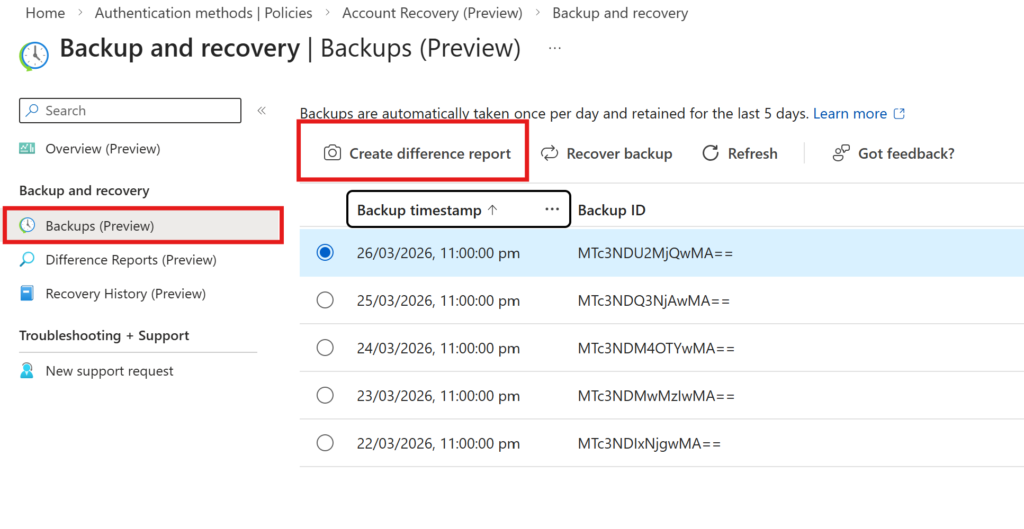
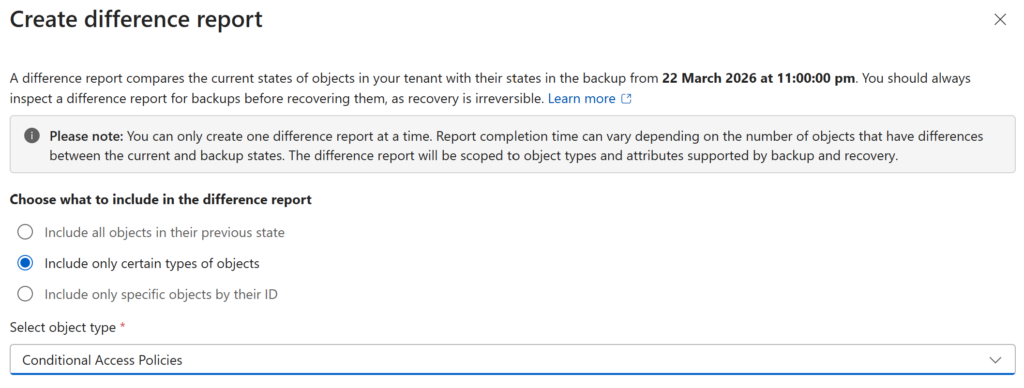
Before you recover an item, you want to view a difference report even though its possible to recover items without creating one. In that example I want to create a difference report on all users so I choose “Include only certain types of objects” with Conditional Access Policies after clicking on “Create difference report”.
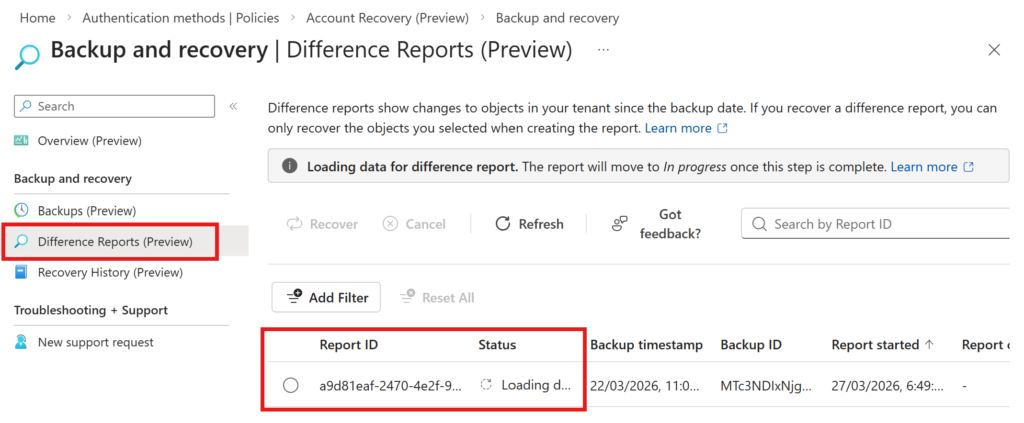
We can now observe the status of the difference report at “Difference Reports”. Depending on the amount of the objects in your tenant, this could take a while. From what I saw so far, its always taking its time to create the difference report so you need to be patient.
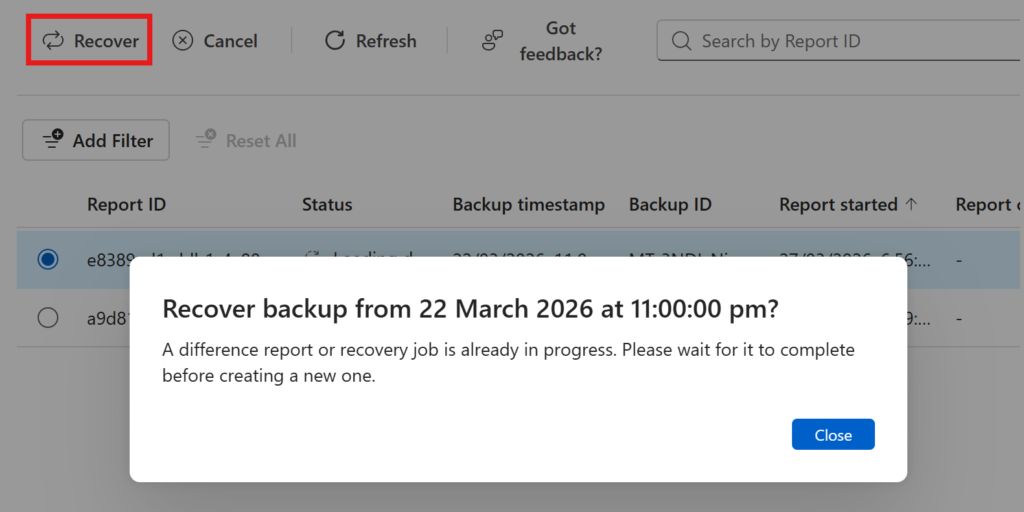
You can only create one difference report at a time so be careful of what you want to include in the report. If you missed something, you can always cancel the report creation.
There are different status types:
| Status | Description |
| Loading data | The system loads data from the selected backup for comparison with the current tenant state. If you previously used the backup for a difference report or recovery, this step might finish quickly. |
| In progress | The system calculates differences between the backup and the current tenant state. Duration depends on the number of objects and the scope of the report. |
| Completed | The difference report finished processing and is ready for review. |
| Failed | The difference report couldn’t be generated because of an error. |
| Canceled | The difference report was canceled before completion. |
While a difference report creation is running, you cannot start a recovery job. It will prompt you to wait:
Good to know: Hard-deleted objects and read-only properties won’t appear in the difference report. You also can’t recover synced objects.
After the report creation has finished, I can see three policies, which were changed since then
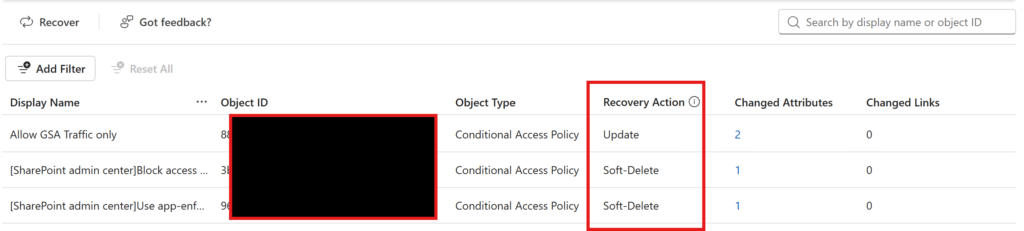
I can also clearly see, that someone switched off the policy “Allow GSA Traffic only”
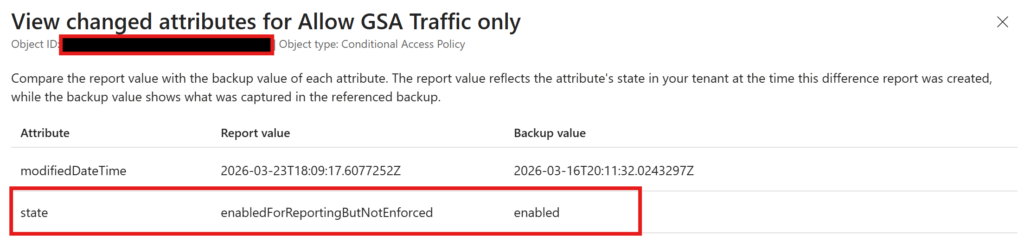
When I want to recover t

he policies, I simply click on recover.
This will recover all three policies! If you set a scope like conditional access policies, you have no option to make further adjustments to what you want to recover. Please make sure to include only the objects you want to recover in the difference report.
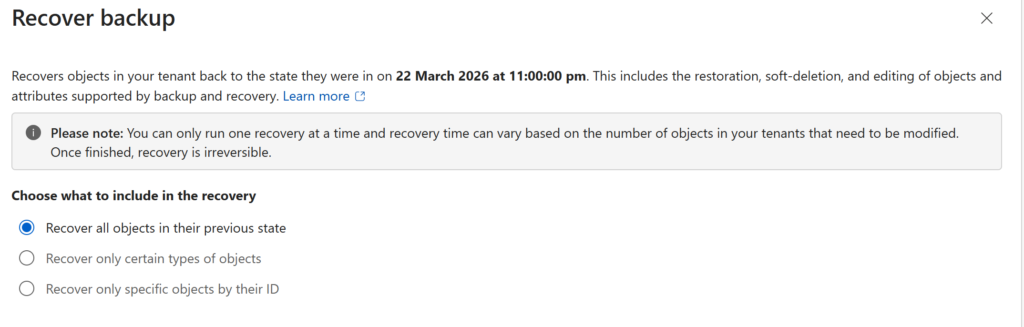
You can also recover directly from a backup without creating a difference report first.
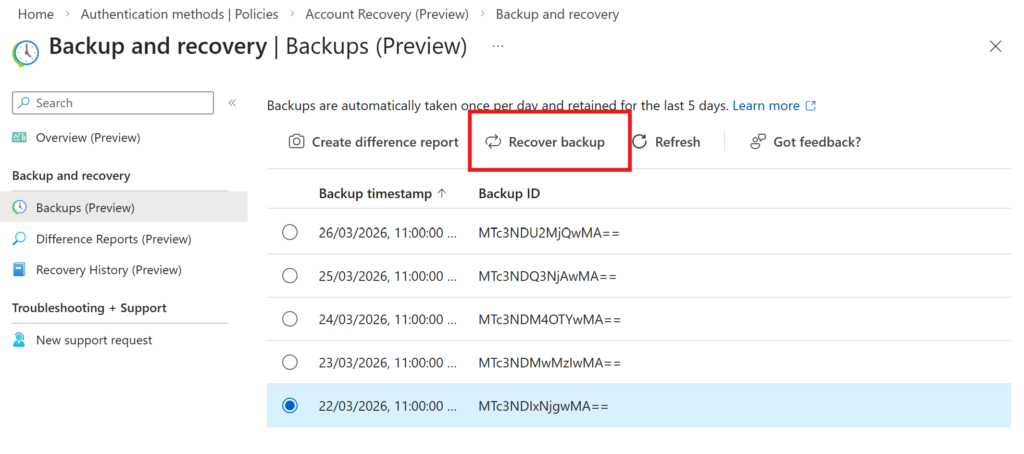
By clicking “Recover backup” you can skipp the difference report and then can choose, which objects you want to restore.
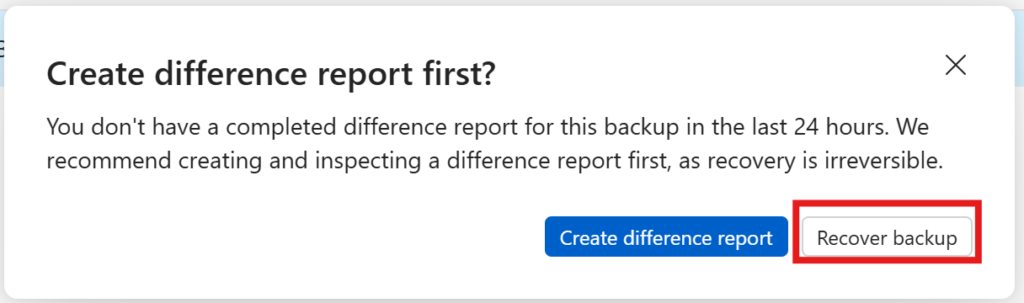
Now you can again choose what you want to recover and let the magic happen
Conclusion
Microsoft provided a (at least for now) simple but effective backup solution to recover your Entra resources. It’s nice to have but in my opinion it’s still a long way to compete with other solutions like DropSuite, Veeam or others. It’s also not built to secure your data in SharePoint Online or similar services.
[…] This post was published first on Entra Backup and Recovery | ZeroTrustStories […]