

The Problem
Have you ever been in the situation, where you have to activate more than one PIM role and it took ages? I built a tool, which will make PIM comfy.
What is PIM?
PIM or Privileged Identity Management is an Entra ID P2 feature, which will let you assign an admin role for a specific amount of time. With this tool, you can granulary enforce Just-enough-administration and Just-in-Time-administration.
If you want to learn more about PIM have a look here: What is Privileged Identity Management? – Microsoft Entra ID Governance | Microsoft Learn
PIMTool features
What can it do? It’s still in an early stage, but (at least I think 😂) good enough, to make your life easier.
It’s based on PowerShell with a nice little GUI. The biggest painpoint I wanted to address is, the problem that you cannot assign multiple PIM roles in the Azure portal at once.
When you assign yourself roles, it could take up to 5 minutes, until you see them in the Azure portal as active.
The GUI looks like this before connecting to a tenant:
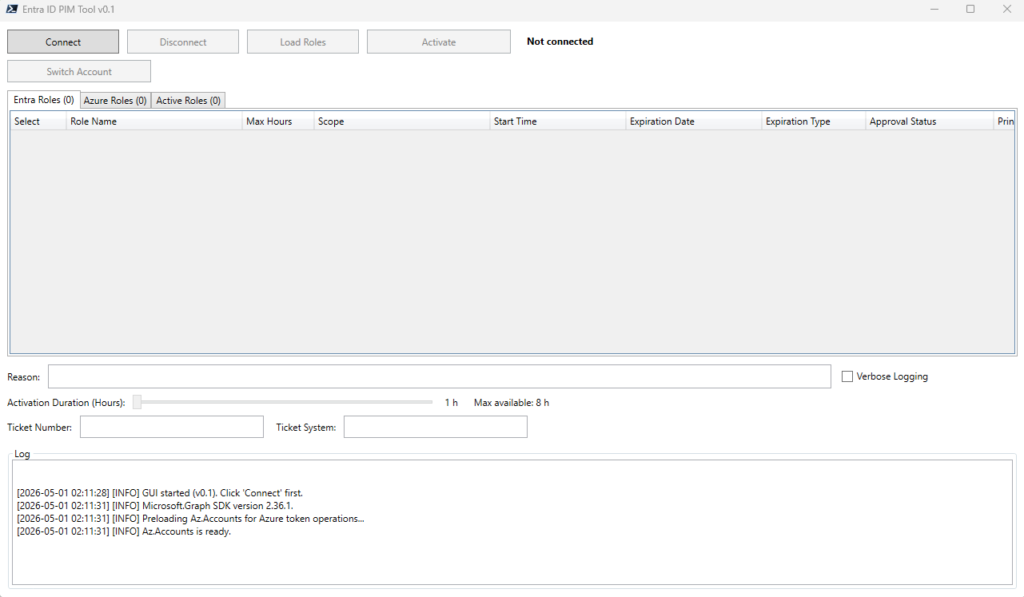
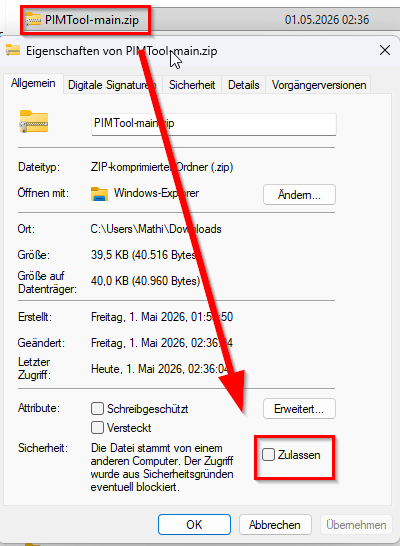
Please don’t forget to “Allow” the zipfile, after downloading and before extracting 😉
Entra roles
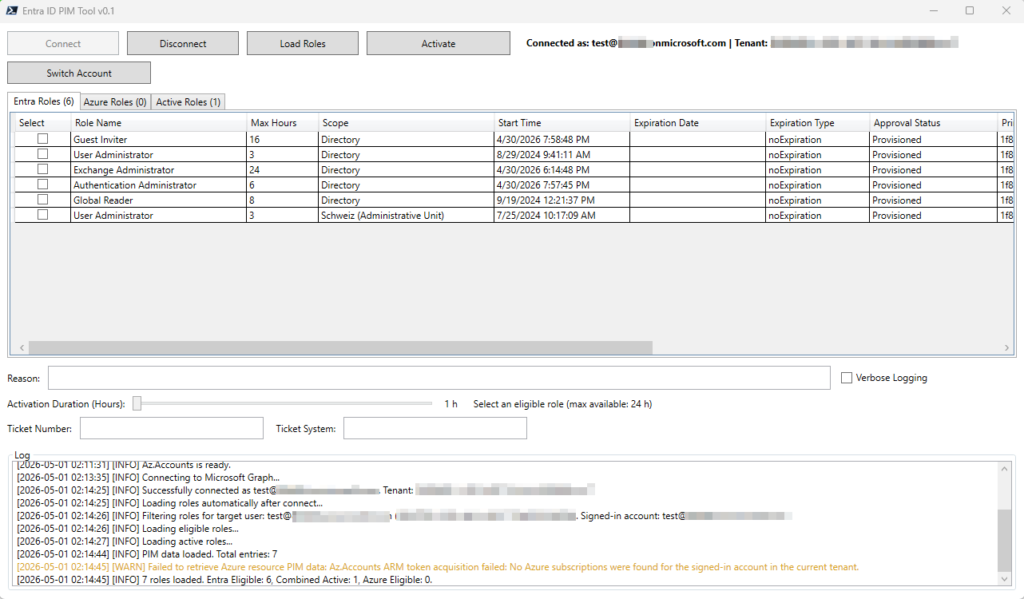
After connecting, it will show you data in three tabs (depending on if you have an Azure subscription or not, that one test account didn’t have one and thats the reason why the warning in the logs appeared)
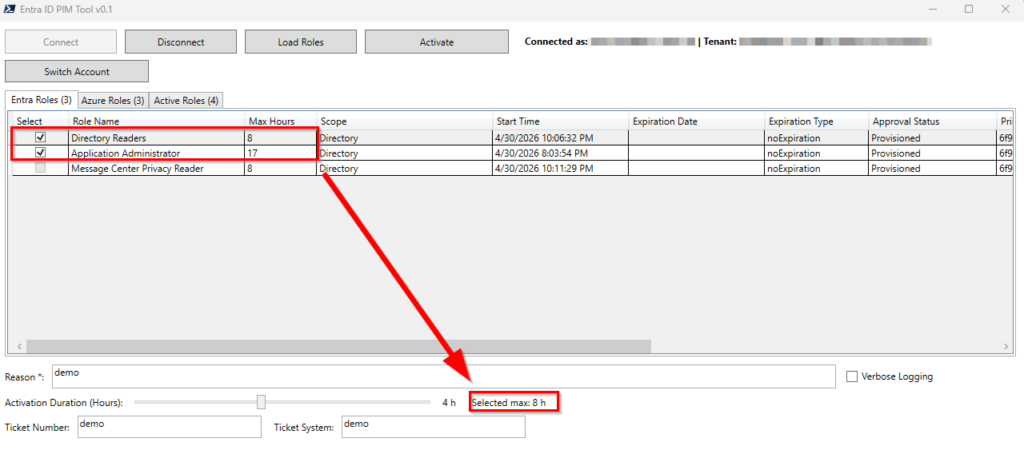
As you can see, the account has a good amount of Entra roles, which he could assign. If you select multiple roles, you need to put in the information like Reason or Ticket System, depeneding if the role requires it. Also, you have slider, where you can choose the time, how long the role should be active.
The slider takes the smallest possible duration when more roles are selected e.g. if you select two roles, one with 16 hours and one with 6 hours, you can only activate both at one time for a maximum of 6 hours.
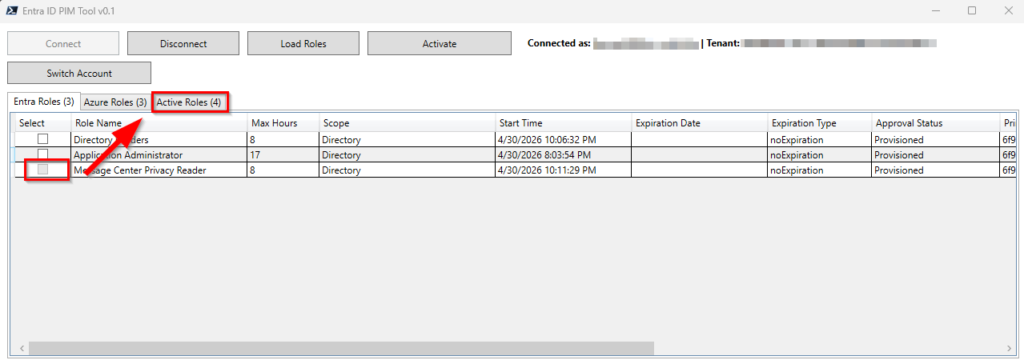
Also, if you already assigned yourself permissions, these roles will be greyed out and shown in the “Active Role” tab.
Azure Roles
Of course you can assign yourself permissions for Azure roles you are eligible for.
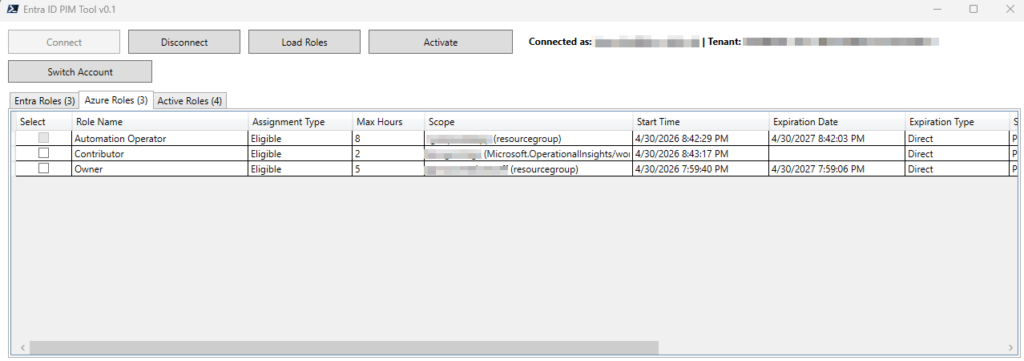
It will show you the permission role name and the resource itself in the scope column.
You can also cross-assign roles from Entra and Azure assignments
Active Roles
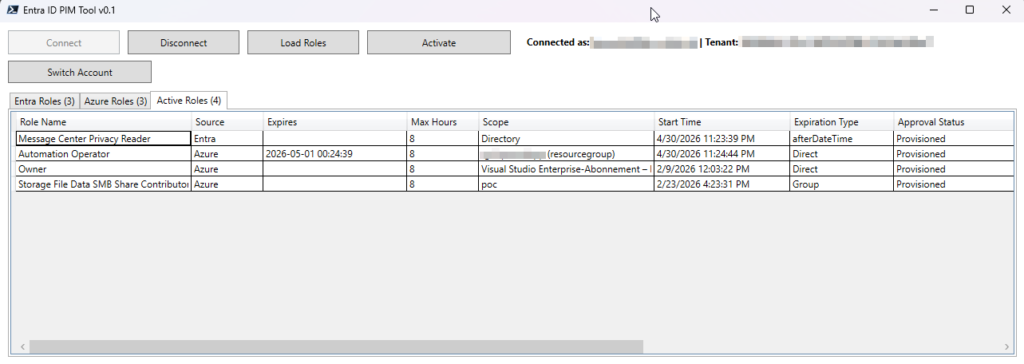
Well as the name says, this tab shows you your active assignments, also the permanent ones.
Upcoming features
- Assigning group permissions
- Disable the role when the work is done
Where to get the PIMTool?
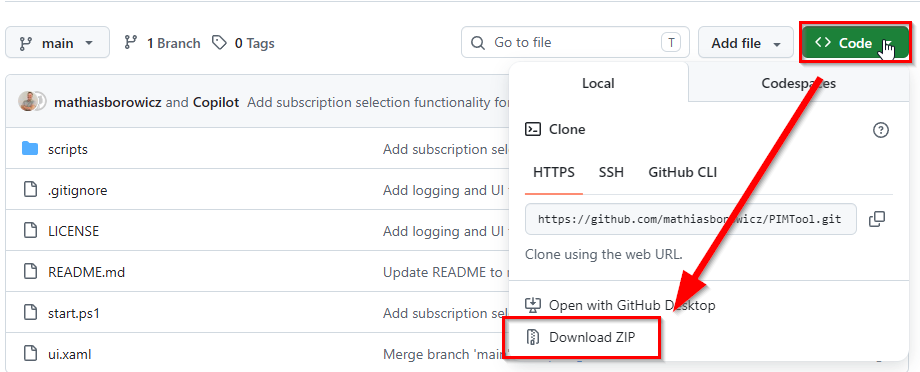
You can download it from my GitHub: mathiasborowicz/PIMTool
How to run the PIMTool?
After downloading, allow the files inside the .zip and unzip it.
Just start the start.ps1 file with PowerShell 7.x
Looks cool but unfortunately freezes on trying to load roles.
The GUI seems to be freezing but thats just when it gathers your roles in the background. Give it some time then the roles should be showing up 🙂
Seems to work after about 3 minutes. Loads eligible roles rather quickly then hangs on getting active roles. But other than that has been super handy! Thanks